Device Logo

Google TV Setup Guide

How do I set up IPTV on Google TV? To configure Google TV for IPTV, install the Downloader app from the Play Store, enable Developer Mode to allow unknown apps, and sideload the IPTV APK. Launch the app and select "Login with Xtream Codes API" to securely enter your subscription credentials.

Quick Facts

App Required IPTV Smarters Pro
Method APK Sideloading
Device Support Android TV OS
Setup Time ~5 minutes
Official Website Visit Site

Step-by-Step Guide

Google TV (and Android TV) allows you to install custom third-party applications outside the Google Play Store. Follow these exact steps to unlock Developer Mode and sideload the app.

Installation Steps

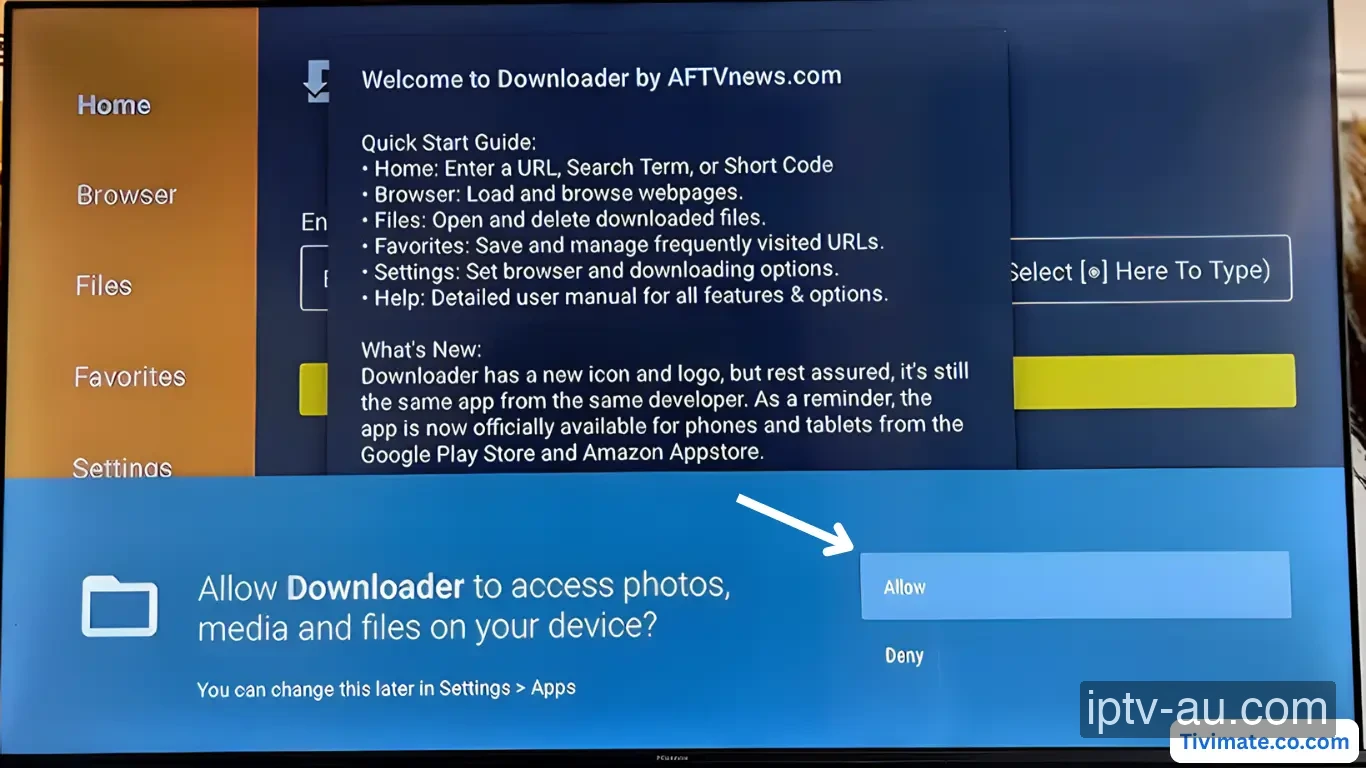
  1. Install & Open Downloader

    From the Google TV home screen, go to the search bar and look for an app called "Downloader" (it has an orange icon) and click Install.

    Important: Once installed, click Open. When prompted, you MUST click Allow so Downloader can access files on your device.

    Install Downloader for IPTV on Google TV
  2. Enable Developer Options

    Press the Home button on the remote. Go to the gear icon in the top right to open Settings. Navigate to System > About. Scroll down until you see Android TV OS Build. Click the center button on the remote 7 times in a row until the message "You are now a developer!" appears.

  3. Allow Unknown Apps

    Now that Developer Mode is active, press the back button to return to the main Settings menu. Go to Apps > Security & Restrictions > Install unknown apps. Find the Downloader app in the list and toggle the switch to ON (or Allowed).

    Critical Step: If you skip this, your Google TV will completely block the IPTV app from installing in the next step!

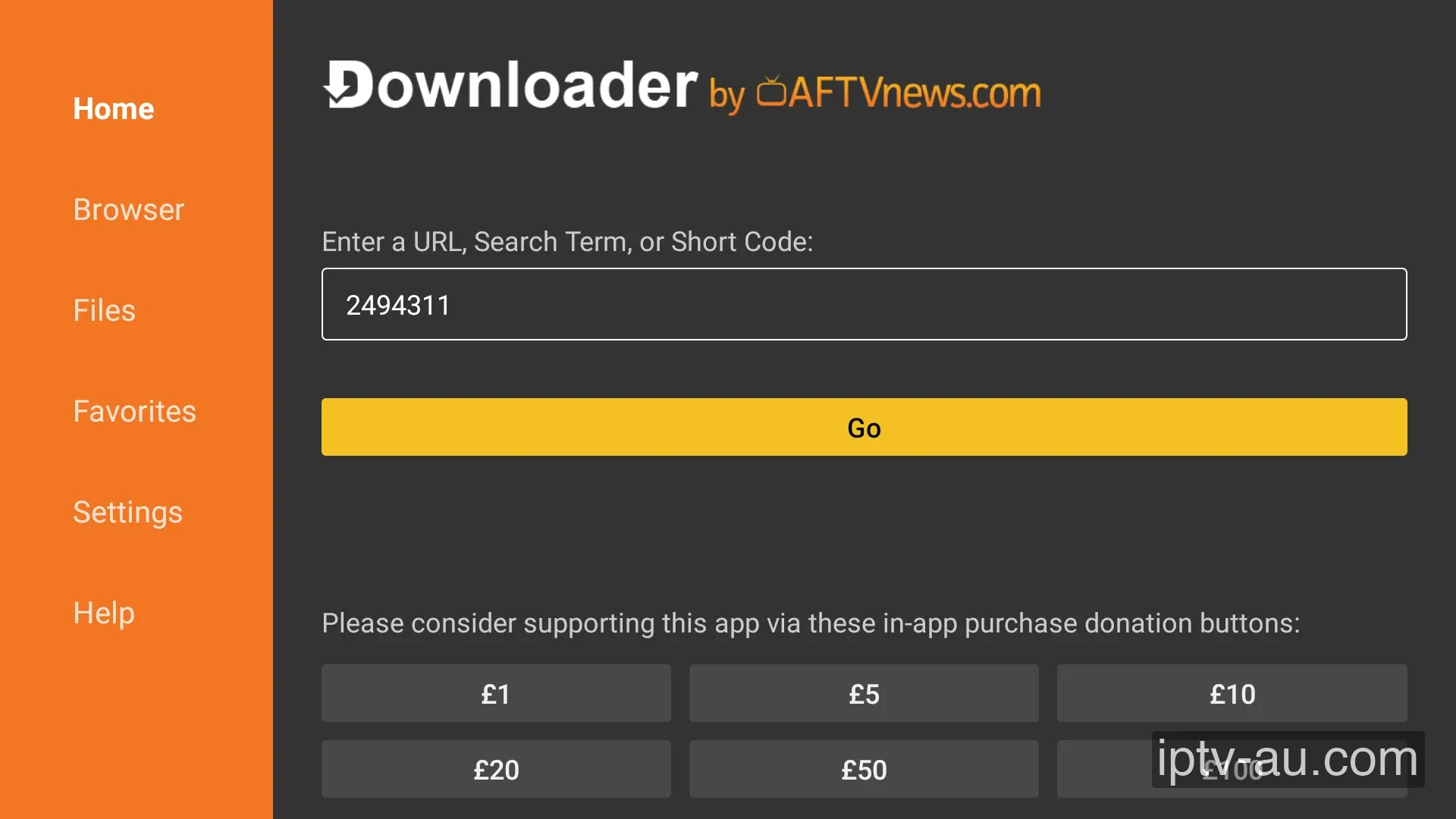
  4. Download IPTV Smarters Pro

    Go back to the home screen and launch the Downloader app again. Click on the URL search bar in the middle of the screen and type in the direct download code: 780815 (or type iptvsmarters.com/smarters.apk) and click Go. Once the download completes, click INSTALL.

    Download IPTV Smarters Pro for Google TV
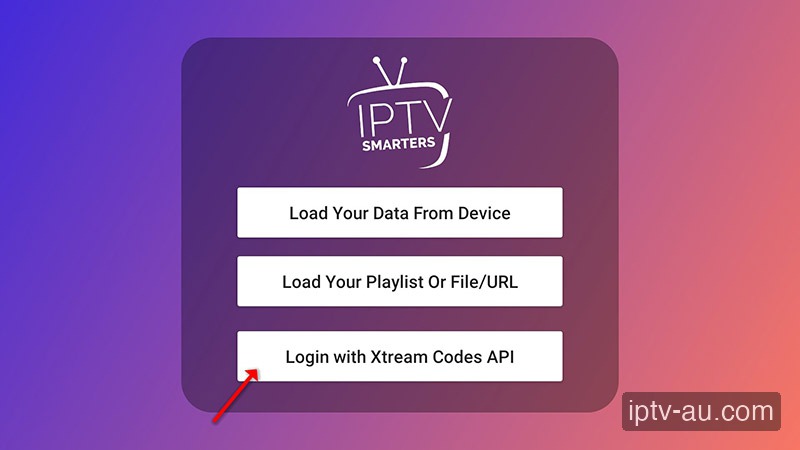
  5. Select Xtream Codes API

    Open the newly installed IPTV Smarters Pro application. Accept the Terms of Use (EULA). On the login selection screen, tap "Login with Xtream Codes API".

    Select Xtream Codes API for IPTV on Google TV
    Always choose the Xtream Codes API option.
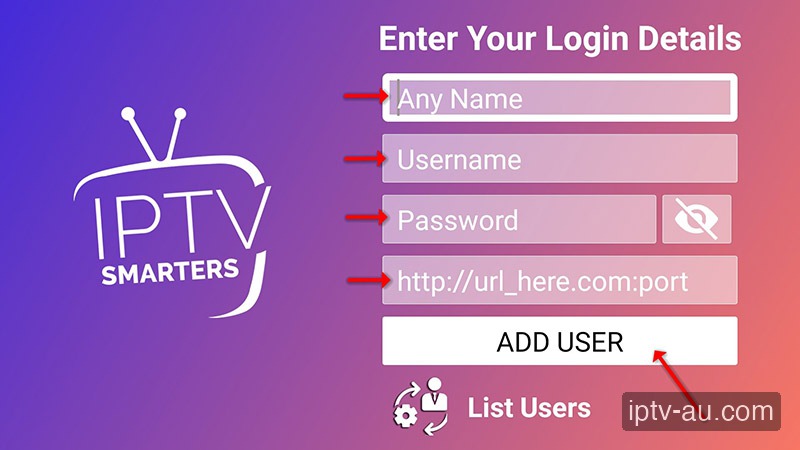
  6. Enter Your Credentials

    You will now see a form with 4 fields. Fill them out exactly as provided by our support team via WhatsApp or email. Double-check for typos or accidental spaces at the end of words.

    Any Name: IPTV Australia
    Username: your_username
    Password: your_password
    Server URL: http://provided-url.com:port
    Enter Your Credentials for IPTV on Google TV
  7. Sync & Start Watching

    Click Add User. The app will briefly download the channel list, VOD library, and TV guide (EPG).

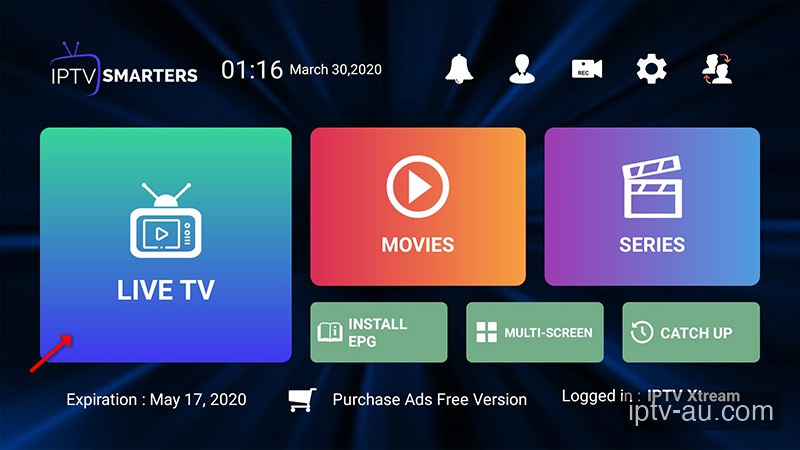
    Sync & Start Watching for IPTV on Google TV
    Setup complete! Browse 58,000+ live channels instantly.

Troubleshooting

Cannot Install Unknown Apps

Even after unlocking Developer Mode, you must grant Downloader permission. Go to Settings > Apps > Security & Restrictions > Install unknown apps, and turn Downloader to ON.

App Crashes or Lags

Google TV devices have limited storage space. Go to Settings > Apps > See all apps. Run a System Cache Clear on unused apps to free up memory for your IPTV player.

"Playlist Could Not Be Loaded"

Double-check your credentials. The Xtream Codes API requires exact case sensitivity. Make sure there are no invisible trailing spaces at the end of the username or URL.

LIVE NOW: SPORTS