Enable Developer Mode
On your Roku remote, press the following buttons sequentially: Home (3x), Up (2x), Right, Left, Right, Left, Right. A secret Developer Settings screen will appear. Note the IP Address shown on the screen.

How do I set up IPTV on Roku TV Setup? To configure Roku TV Setup for IPTV, install the application on your device. Once installed, launch the app and choose "Login with Xtream Codes API" (or enter your M3U link) to securely input your subscription credentials and load your live TV and VOD library.
| IPTV Subscription | IPTV Roku TV Setup |
|---|---|
| Best App | IPTV Smarters Pro |
| Method | Developer Mode Sideloading |
| Setup Time | 8 mins |
| Official Website | Visit Site |
| Device Support | Roku Support |
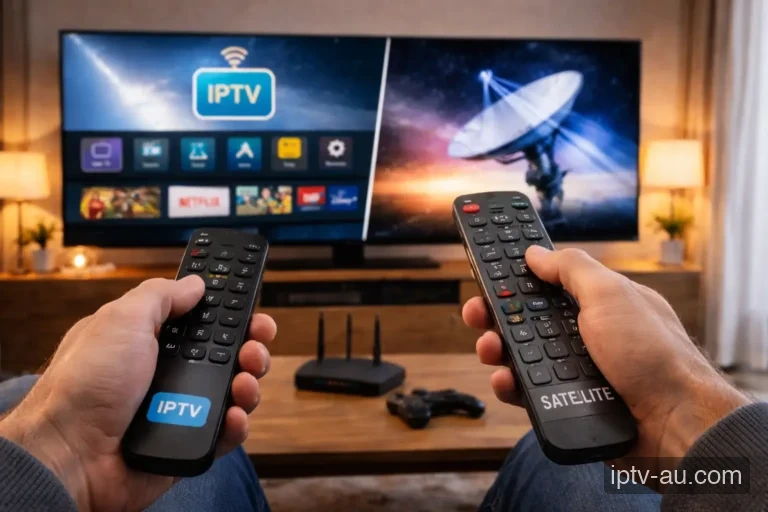
Roku is a highly restricted ecosystem and recently removed most IPTV players from their official channel store. However, Roku includes a "Developer Mode" that allows you to install one custom app at a time via your computer. This guide will walk you through uploading the IPTV Smarters `.zip` file.
On your Roku remote, press the following buttons sequentially: Home (3x), Up (2x), Right, Left, Right, Left, Right. A secret Developer Settings screen will appear. Note the IP Address shown on the screen.
Follow the on-screen prompts to set a developer password, then select Enable Installer and Restart. Your Roku will reboot with Developer Mode activated.
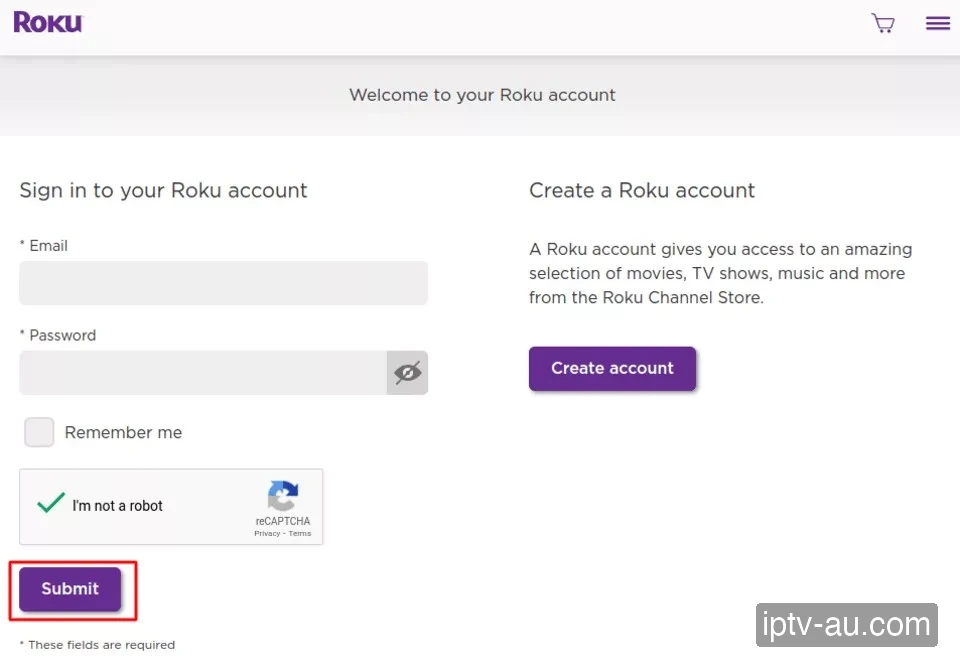
On your computer or smartphone, navigate to my.roku.com and sign in to the Roku account associated with your TV.
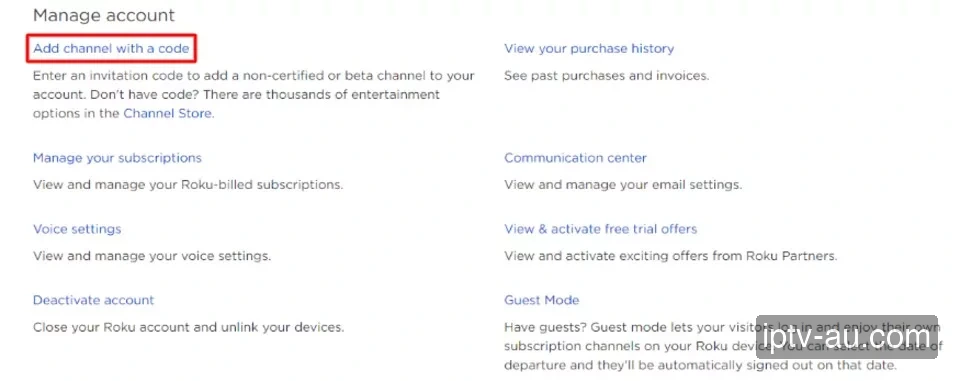
Under your account settings dashboard, click the link that says Add channel with a code.
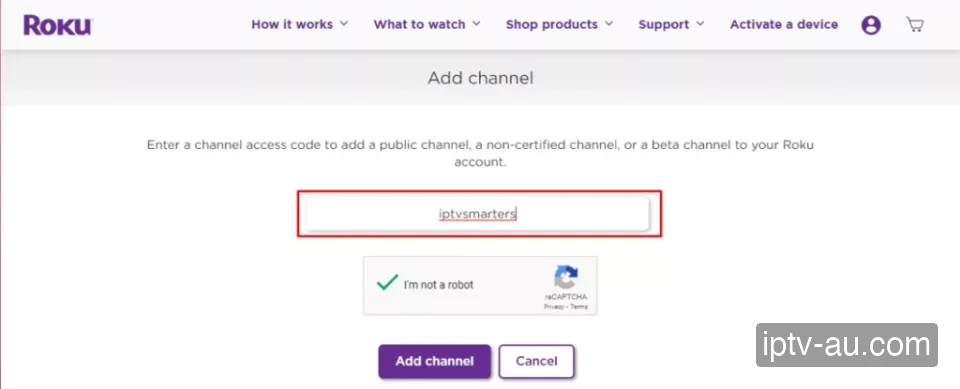
In the access code field, type iptvsmarters (or the custom code provided by our team) and click Add channel.
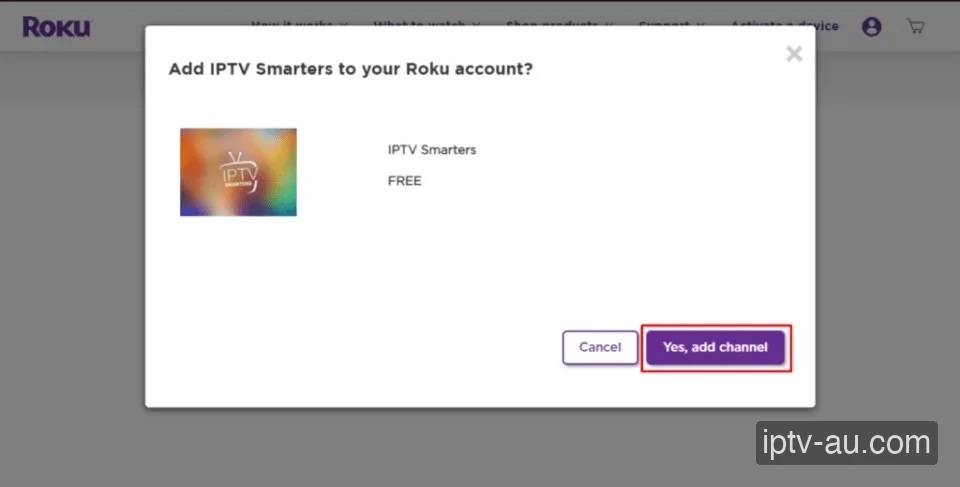
A popup box will appear asking to confirm adding the IPTV Smarters application. Click Yes, add channel.
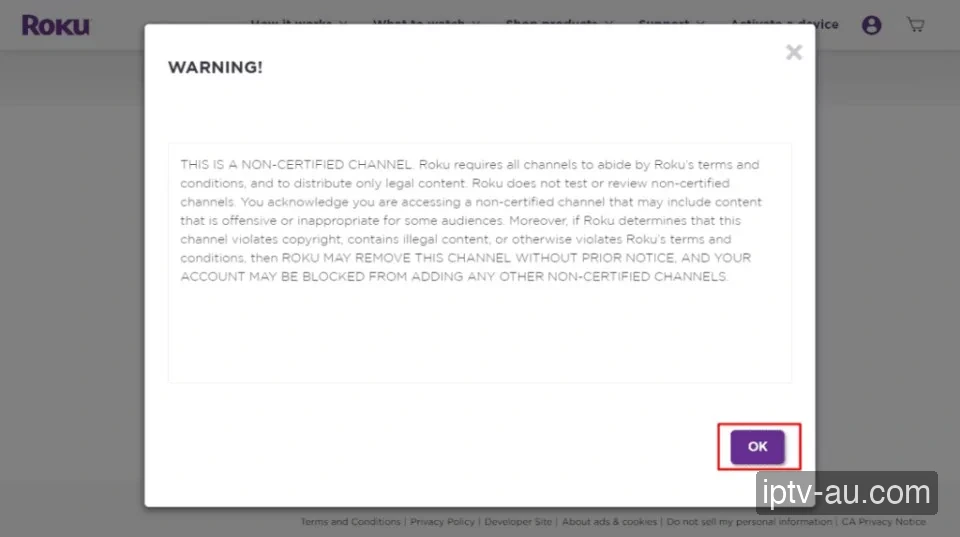
Roku will display a standard warning about non-certified channels. Simply click OK to bypass it and proceed.
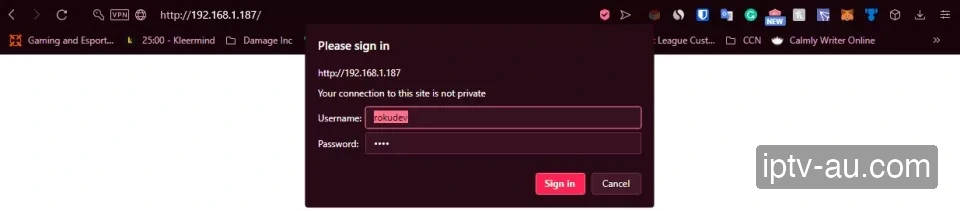
Now open a new browser tab and type in the IP Address you wrote down in Step 1. Log in with the username rokudev and the developer password you created.
You are now in the Development Application Installer. Click the Upload button and select the IPTV Smarters Pro `.zip` file from your computer.
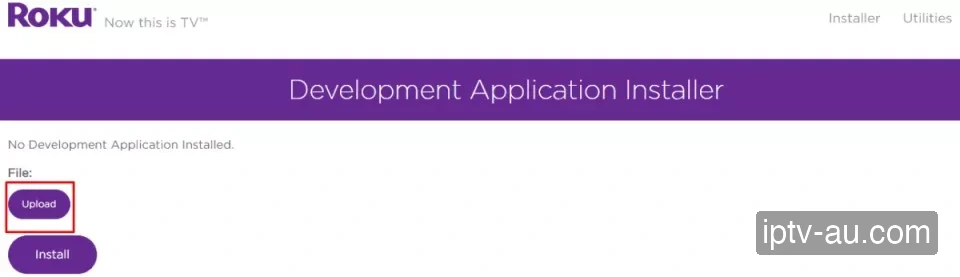
After the file is selected, click the Install button. The file will transfer directly to your Roku TV's internal storage.
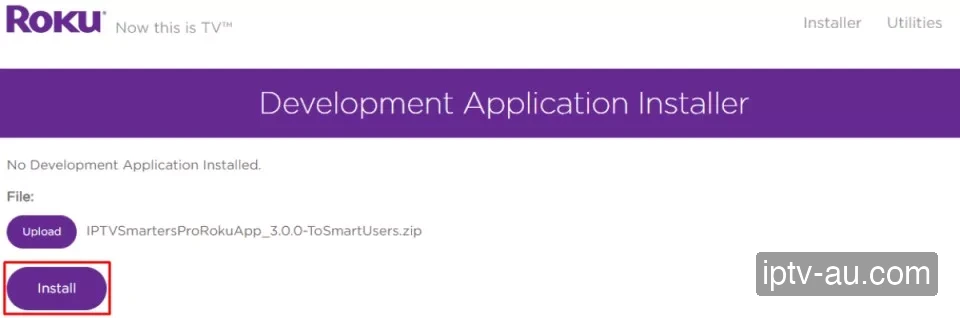
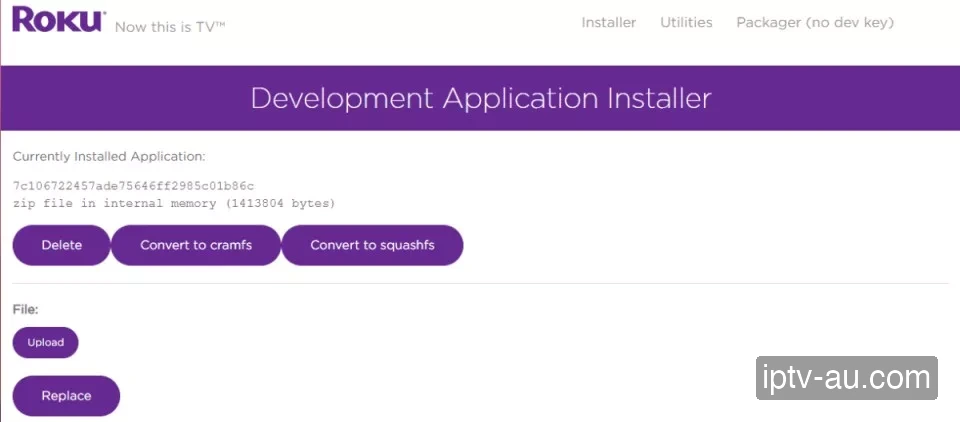
You will see a success screen confirming the application has been installed in internal memory. The IPTV app will now pop up automatically on your TV screen.
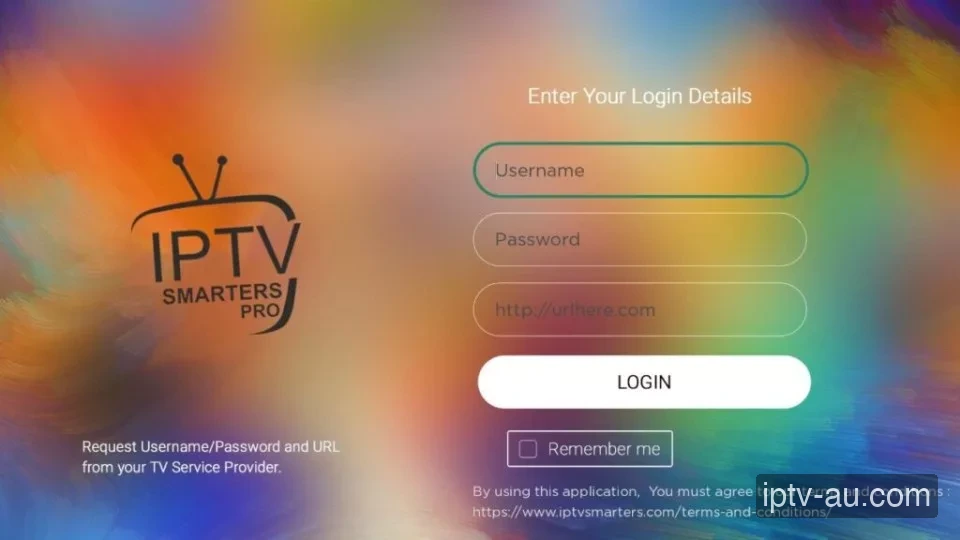
Look at your TV. Accept the terms of service on Smarters, select "Login with Xtream Codes", and enter the Username, Password, and URL provided by our WhatsApp team.
Click Login and allow a minute for the content to download. Once finished, you will enter the Smarters dashboard where you can browse the world's best Live TV and VOD straight from your Roku!
Make sure your smartphone/computer is connected to the exact same Wi-Fi network as the Roku. If the page won't load, restart the Roku and try again.
Since this is a Developer application, it may occasionally vanish if Roku runs a deep system update. Simply repeat Steps 2-4 to push the zip file back to the TV.
This is usually caused by corrupted cache data. Go to your device's Settings > Apps, find the IPTV app, and run a System Cache Clear. If the issue persists, reinstall the application.
Live TV requires a constant, uninterrupted stream of data, while VOD can buffer ahead. Ensure your device is connected via Ethernet. If you must use Wi-Fi, ensure you are on a 5GHz network close to the router.
This indicates a video codec compatibility issue. Go to the app's Player Settings and toggle the decoder between Hardware (HW) and Software (SW). HW decoding is recommended for most modern devices.
Live TV and VOD often stream from different server ports. If Live TV works but VOD doesn't, your ISP might be blocking the VOD port. Restart your router or enable a premium VPN to bypass the block. For a detailed walkthrough, view our Secure VPN Setup Guide for IPTV.
Double-check your credentials. The Xtream Codes API requires exact case-sensitivity. A very common mistake is having an invisible trailing space at the end of your username, password, or server URL.