Install Downloader
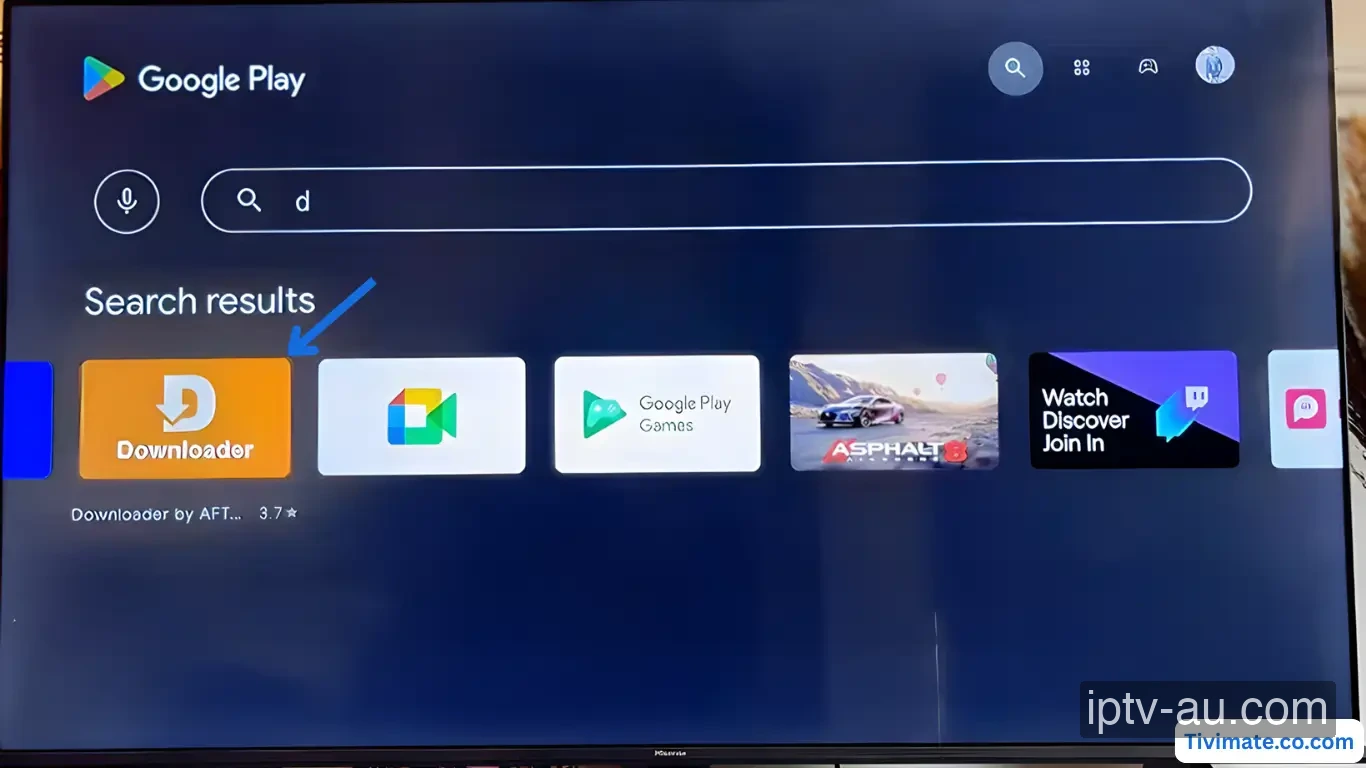
Search for 'Downloader' on your Firestick home screen using the Find menu. Select the orange icon, click 'Get' or 'Download', and install it.
How do I set up IPTV on Firestick? To set up IPTV on an Amazon Firestick, first install the "Downloader" app from the Amazon Appstore. Next, enable "Developer Options" in your Fire TV settings to allow unknown apps. Use Downloader to sideload a professional IPTV player like IPTV Smarters Pro, then log in using your Xtream Codes API credentials provided by your IPTV service.
| IPTV Subscription | IPTV Amazon Firestick |
|---|---|
| Best App | IPTV Smarters Pro |
| Compatibility | Fire TV Stick 4K, Max, Cube |
| Setup Time | 5 mins |
| Official Website | Visit Site |
| Device Support | Amazon Support |
The Amazon Firestick is the most popular IPTV device globally. Being an Android-based OS (FireOS), it allows you to easily "sideload" the most professional, high-performance IPTV applications like IPTV Smarters Pro that aren't available in standard app stores.
Search for 'Downloader' on your Firestick home screen using the Find menu. Select the orange icon, click 'Get' or 'Download', and install it.
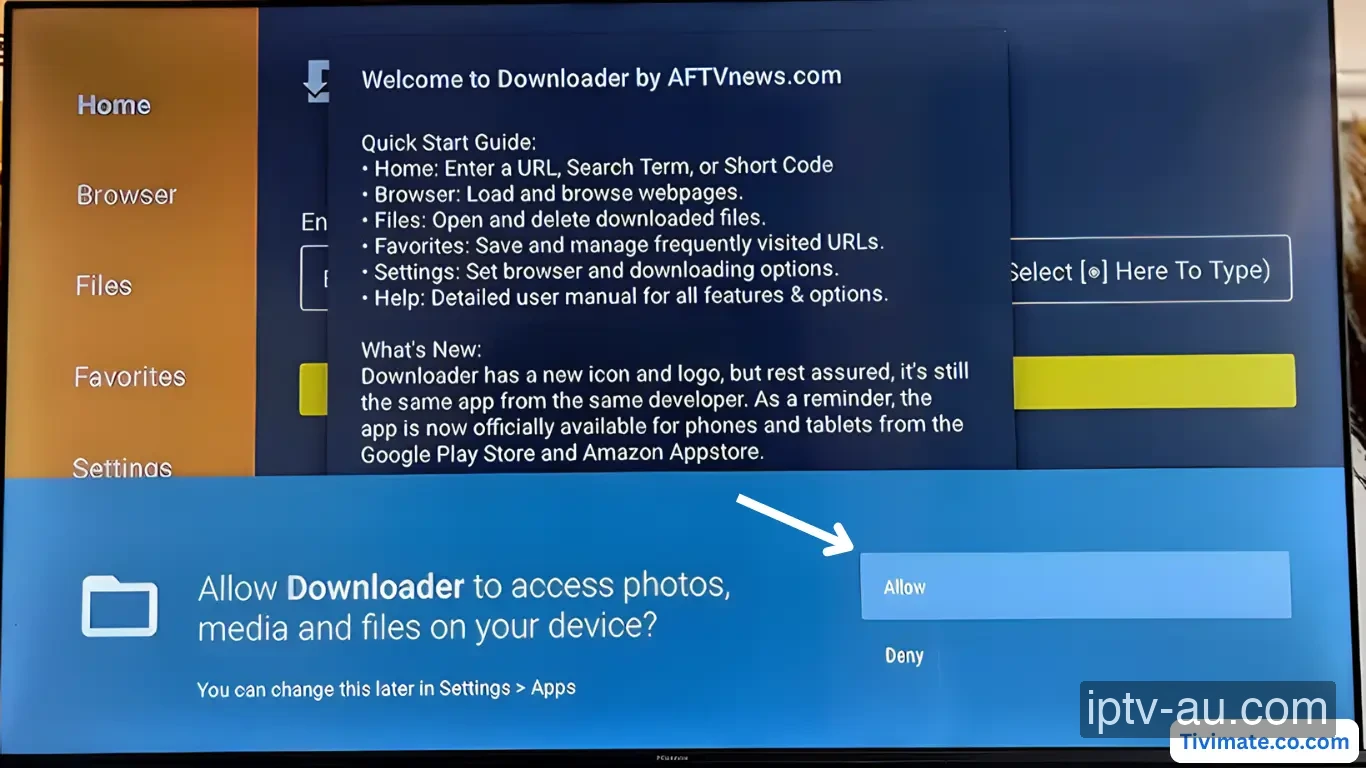
Open Downloader. When prompted, click Allow so the app can save the downloaded IPTV player files to your Firestick.
Press the Home button on your remote. Go to Settings > My Fire TV > About. Highlight the name of your device and click the Center button 7 TIMES until you see "You are already a developer." Then, go back one step to Developer Options > Install unknown apps, and turn ON Downloader.
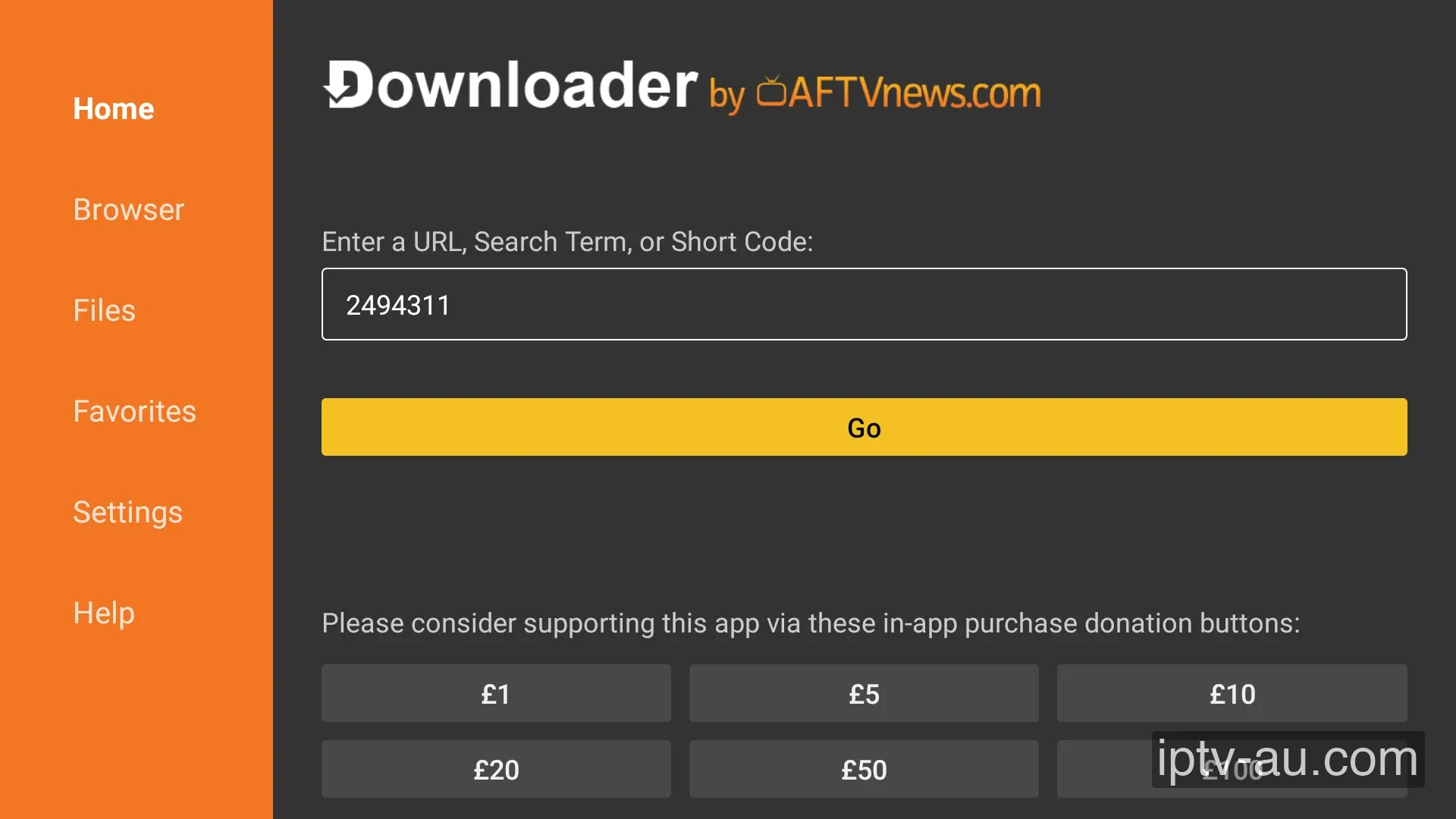
Return to the Downloader app. In the search box, enter the direct download code for IPTV Smarters Pro: 780815 and click Go.
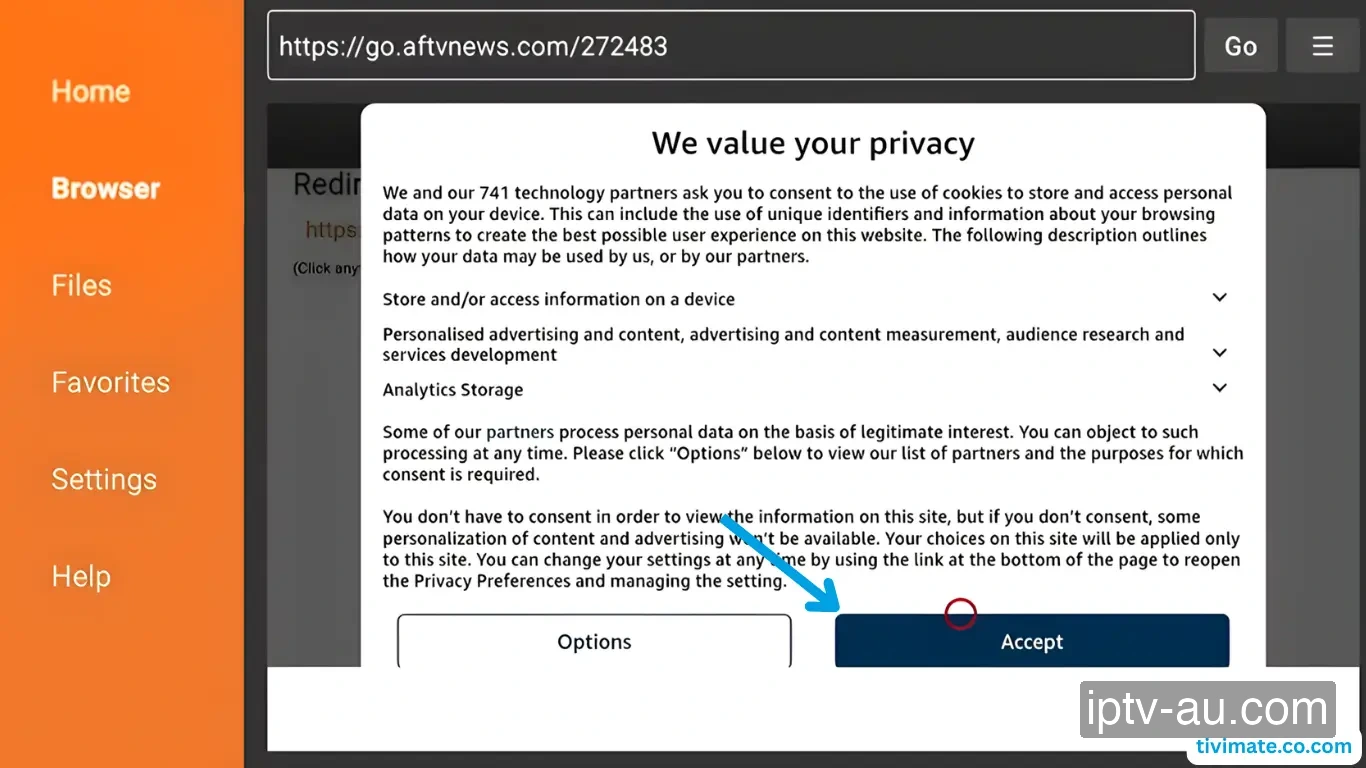
A quick redirect page will appear. If you see a privacy prompt from AFTVnews, simply scroll down and click Accept.
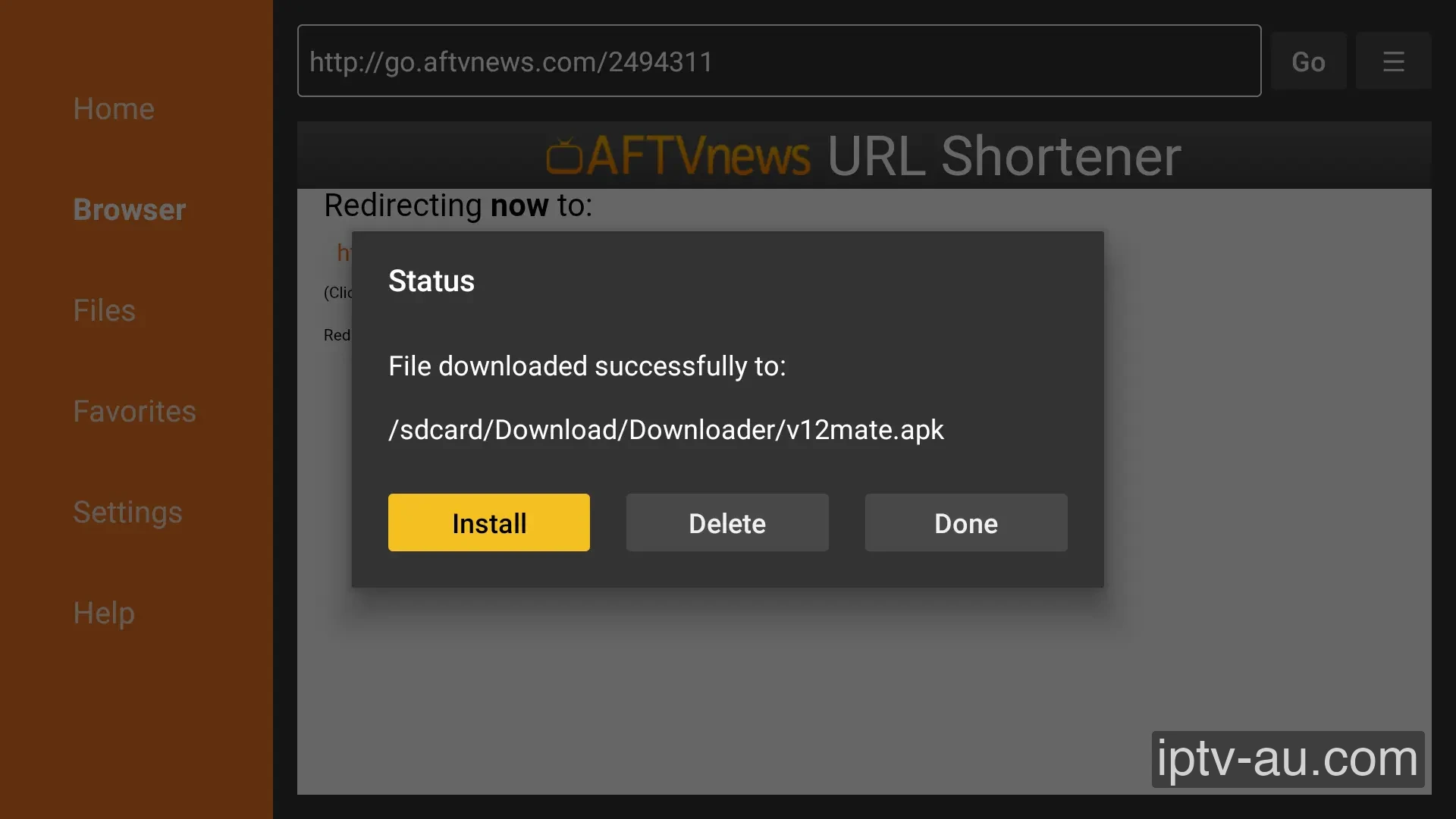
The APK file will download automatically. Once finished, a popup will appear. Click Install to finalize the sideloading process.
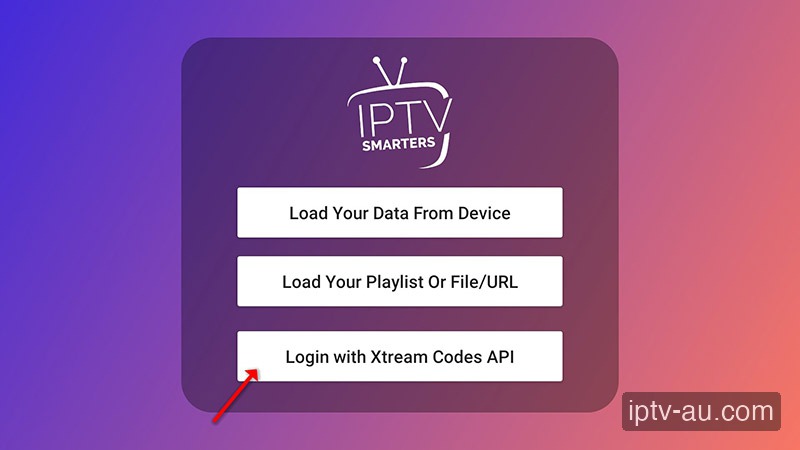
Open the newly installed IPTV Smarters Pro application. Accept the terms of service (EULA). On the login selection screen, tap "Login with Xtream Codes API". This is the best method as it automatically organizes Live TV, Movies, and Series into categories.
You will now see a form with 4 fields. Fill them out exactly as provided by our support team via WhatsApp or email. Double-check for typos or accidental spaces at the end of words.
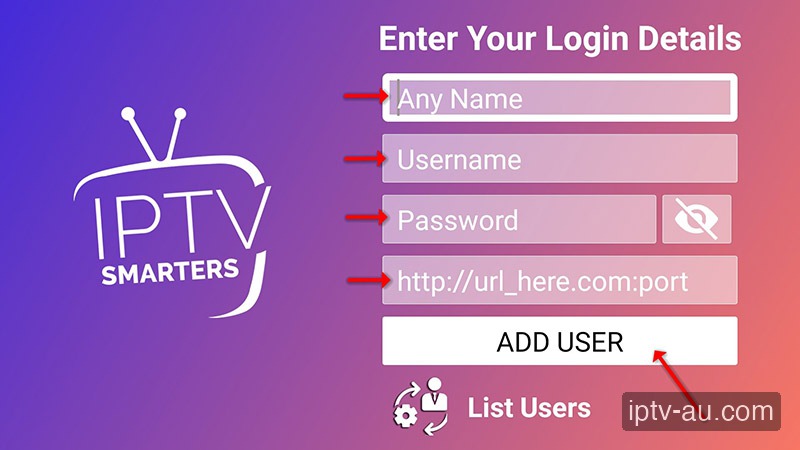
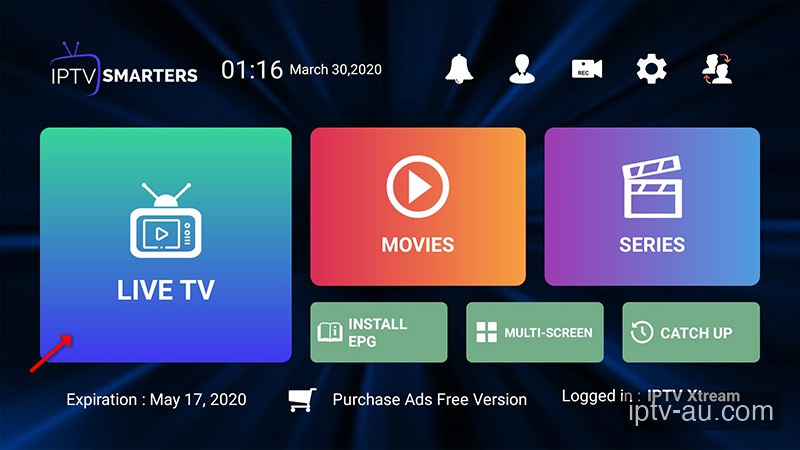
Click Add User. The app will briefly download the channel list and TV guide. Once finished, you will enter the beautiful main dashboard. Select Live TV, Movies, or Series and enjoy your premium content!
Amazon hid this option in recent updates. Go to Settings > My Fire TV > About. Highlight the name of your Firestick model and rapidly press the select (center) button 7 times.
Firesticks have limited storage space. Go to Settings > Applications > Manage Installed Applications, select your IPTV app, and click Clear Cache (Do NOT click Clear Data or you will lose your login). Learn more in our Ultimate Guide to Clearing IPTV Cache.
This is usually caused by corrupted cache data. Go to your device's Settings > Apps, find the IPTV app, and run a System Cache Clear. If the issue persists, reinstall the application.
Live TV requires a constant, uninterrupted stream of data, while VOD can buffer ahead. Ensure your device is connected via Ethernet. If you must use Wi-Fi, ensure you are on a 5GHz network close to the router.
This indicates a video codec compatibility issue. Go to the app's Player Settings and toggle the decoder between Hardware (HW) and Software (SW). HW decoding is recommended for most modern devices.
Live TV and VOD often stream from different server ports. If Live TV works but VOD doesn't, your ISP might be blocking the VOD port. Restart your router or enable a premium VPN to bypass the block. For a detailed walkthrough, view our Secure VPN Setup Guide for IPTV.
Double-check your credentials. The Xtream Codes API requires exact case-sensitivity. A very common mistake is having an invisible trailing space at the end of your username, password, or server URL.