Open Device Settings
Return to the main home screen of your Firestick or Android TV. Locate and select the Settings gear icon.

| Primary Goal | Fix App Crashes & Buffering |
|---|---|
| Target Devices | Android TV & Firestick |
| Safety Level | 100% Safe (No data loss) |
Over time, IPTV applications accumulate temporary image files (like channel logos and movie posters) in a hidden folder called the "Cache". When this folder gets full, your device runs out of memory, causing the app to freeze, crash, or suffer from endless buffering. Clearing the cache takes 1 minute and solves 90% of performance issues.
Return to the main home screen of your Firestick or Android TV. Locate and select the Settings gear icon.
Scroll through the settings options and select the tile labeled Applications (or 'Apps' on some Android devices).
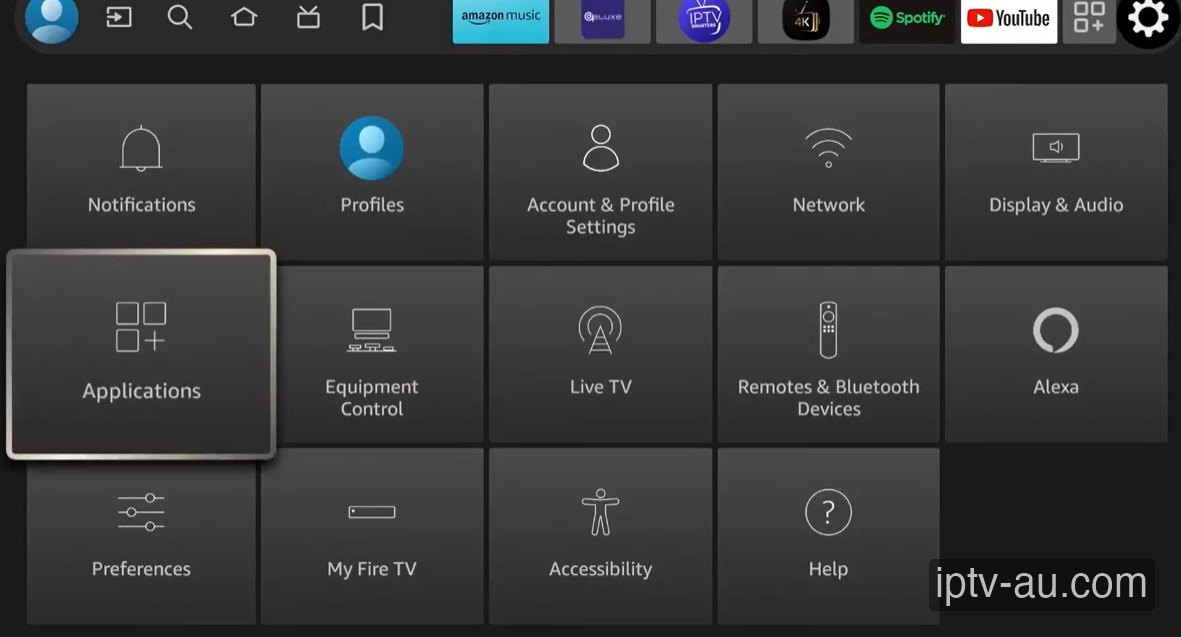
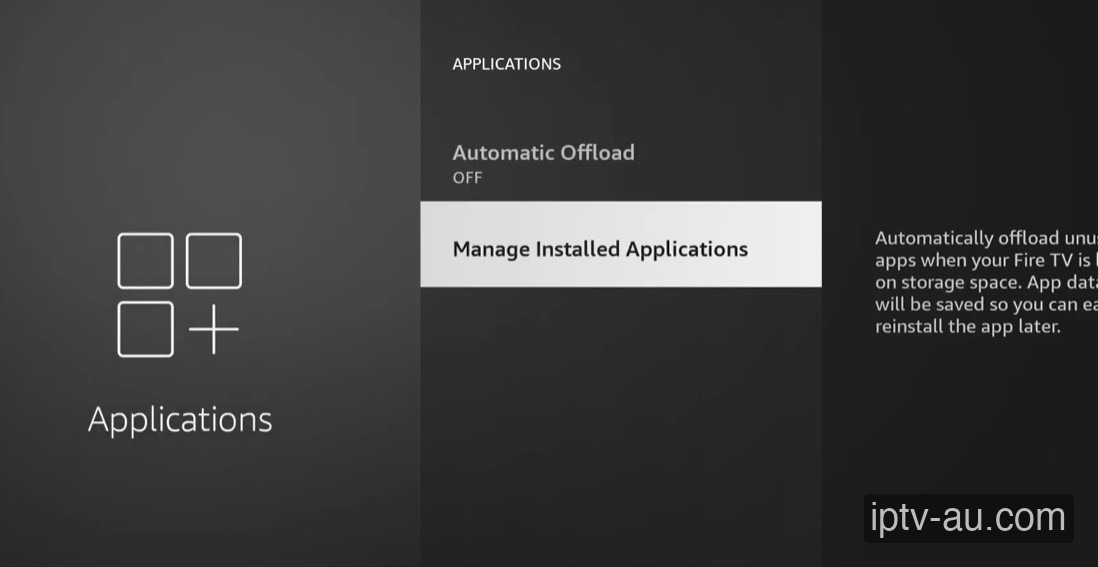
Scroll down and click on Manage Installed Applications. This will display a list of every app currently installed on your device.
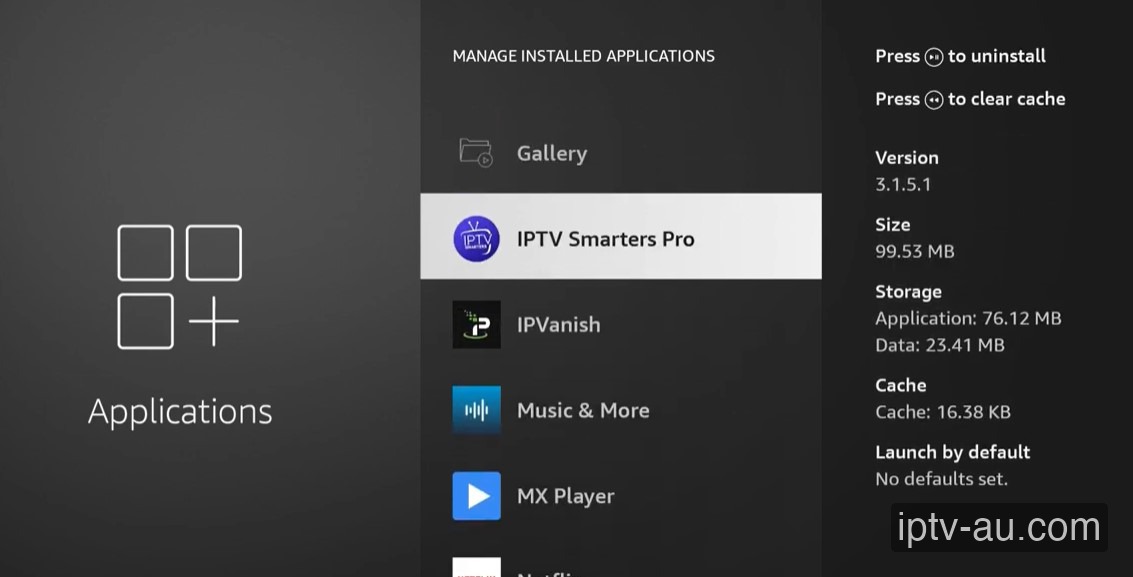
Scroll down the list until you find the specific IPTV application you use (such as IPTV Smarters Pro, TiviMate, or XCIPTV). Click on it.
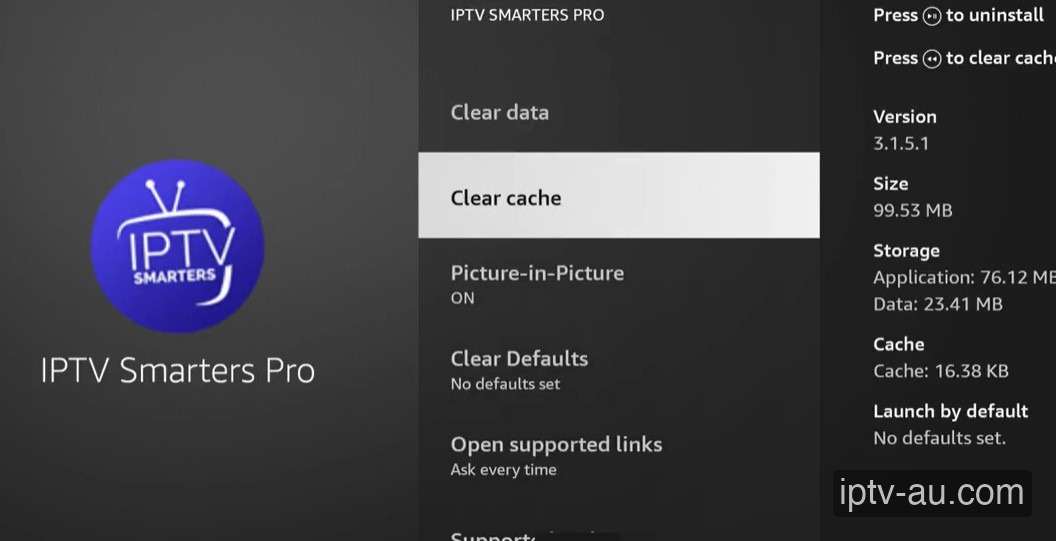
Select the Clear cache option. WARNING: Do NOT click "Clear data". Clearing data will delete your username and password, forcing you to log back in. Clearing the cache is perfectly safe and only deletes temporary junk files.
If you accidentally cleared your data, your IPTV app will act like it was just installed. You will need to reopen the app and re-enter your Server URL, Username, and Password to regain access.
If clearing the cache did not fix the buffering, try rebooting your internet router. If the issue persists, your ISP might be throttling your connection. Consider following our VPN Setup Guide to bypass ISP blocks.
For optimal performance, we recommend clearing your IPTV app cache once a week, or immediately if you notice the app getting sluggish or taking too long to load channels.
No, clearing the cache only removes temporary files like thumbnail images and old EPG data. Your downloaded content, login details, and favorites are perfectly safe.
Cache contains temporary files that the app can rebuild automatically. Data contains your login credentials, custom settings, and favorites. Never clear Data unless you intend to factory reset the app.
IPTV apps download thousands of channel logos and TV guide (EPG) posters daily. This quickly adds up to hundreds of megabytes over just a few weeks of active streaming.
Some advanced Android utility apps offer auto-cache clearing features, but it's generally safest to do it manually from the device settings to avoid disrupting any background processes.