Open App Settings
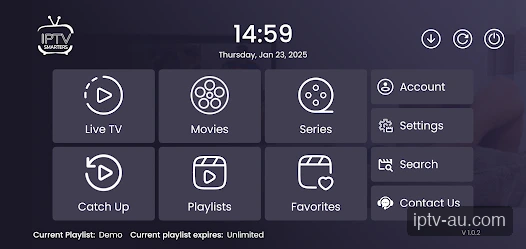
Open your IPTV application (such as IPTV Smarters Pro). From the main home screen, locate and click the Settings gear icon.
| Primary Goal | Turn on Closed Captions (CC) |
|---|---|
| Customization | Font Size, Color, Background |
| Setup Time | 1 min |
Our massive Video-on-Demand (VOD) library includes thousands of international movies and series. While many are dubbed, you can also enable subtitles in English, Spanish, and other languages. You can customize the look of these subtitles directly within your IPTV application to ensure they are easy to read.
Open your IPTV application (such as IPTV Smarters Pro). From the main home screen, locate and click the Settings gear icon.
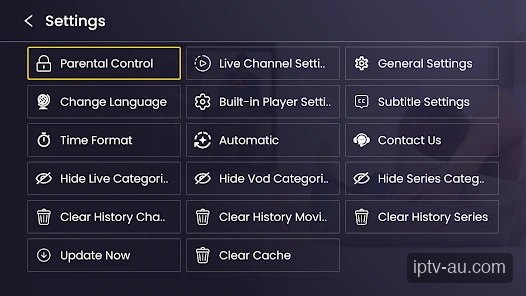
Scroll through the settings menu and look for a button labeled Subtitle Settings or Player Settings.
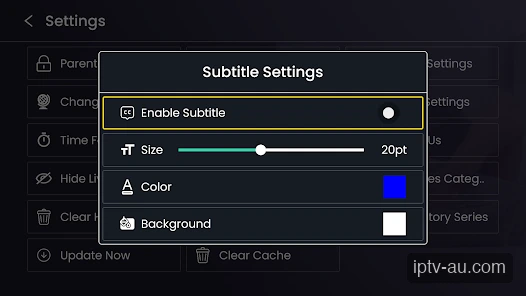
Toggle the Enable Subtitle switch to ON. You can now use the sliders and color pickers below to adjust the text size, font color, and text background. We recommend a yellow or white color with a dark background for maximum readability.
When watching a movie, bring up the playback controls (press OK/Enter). Look for a "CC" or "Audio/Subtitles" icon on the player overlay. Click it to choose from the available languages for that specific movie.
Not all live TV channels broadcast closed captions. Subtitles are primarily available for VOD (Video on Demand) movies and TV series. If a movie doesn't have subtitles, try selecting a different audio track instead.
Yes! Advanced applications like TiviMate or VLC Player allow you to download `.srt` subtitle files from the internet and load them locally during playback if the movie doesn't have them built-in.
If the text appears before or after the audio spoken, look for a 'Subtitle Delay' or 'Sync' option in the player menu to adjust the timing forward or backward in milliseconds.
It depends entirely on the broadcaster. Some major networks transmit Closed Captions (CC) with their stream, but most standard IPTV live channels do not include embedded subtitles.
Sometimes subtitles are 'hardcoded' (burned directly into the video) rather than rendered dynamically as text. You cannot change the font, color, or size of hardcoded subtitles.
Bring up the playback menu while the video is playing, click the subtitle icon (usually marked CC), and select 'None' or 'Disable' from the list to turn them off entirely.