Install Televizo
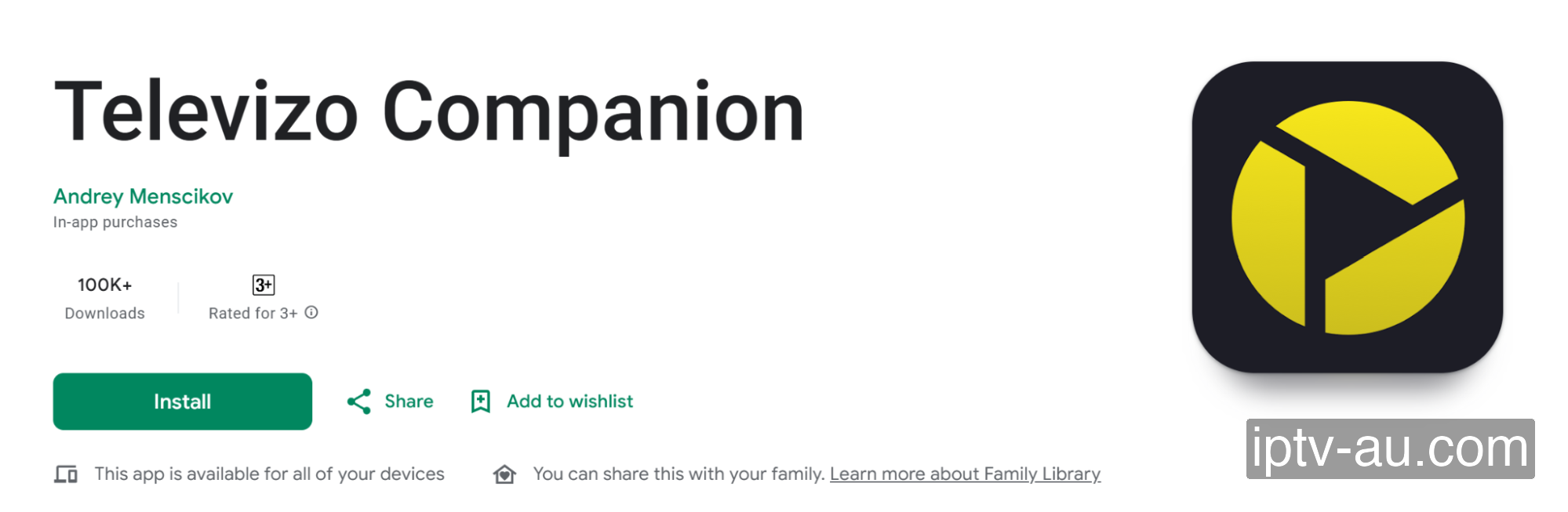
Open the Google Play Store on your Android phone, tablet, or Android TV. Search for "Televizo" and install the free app.
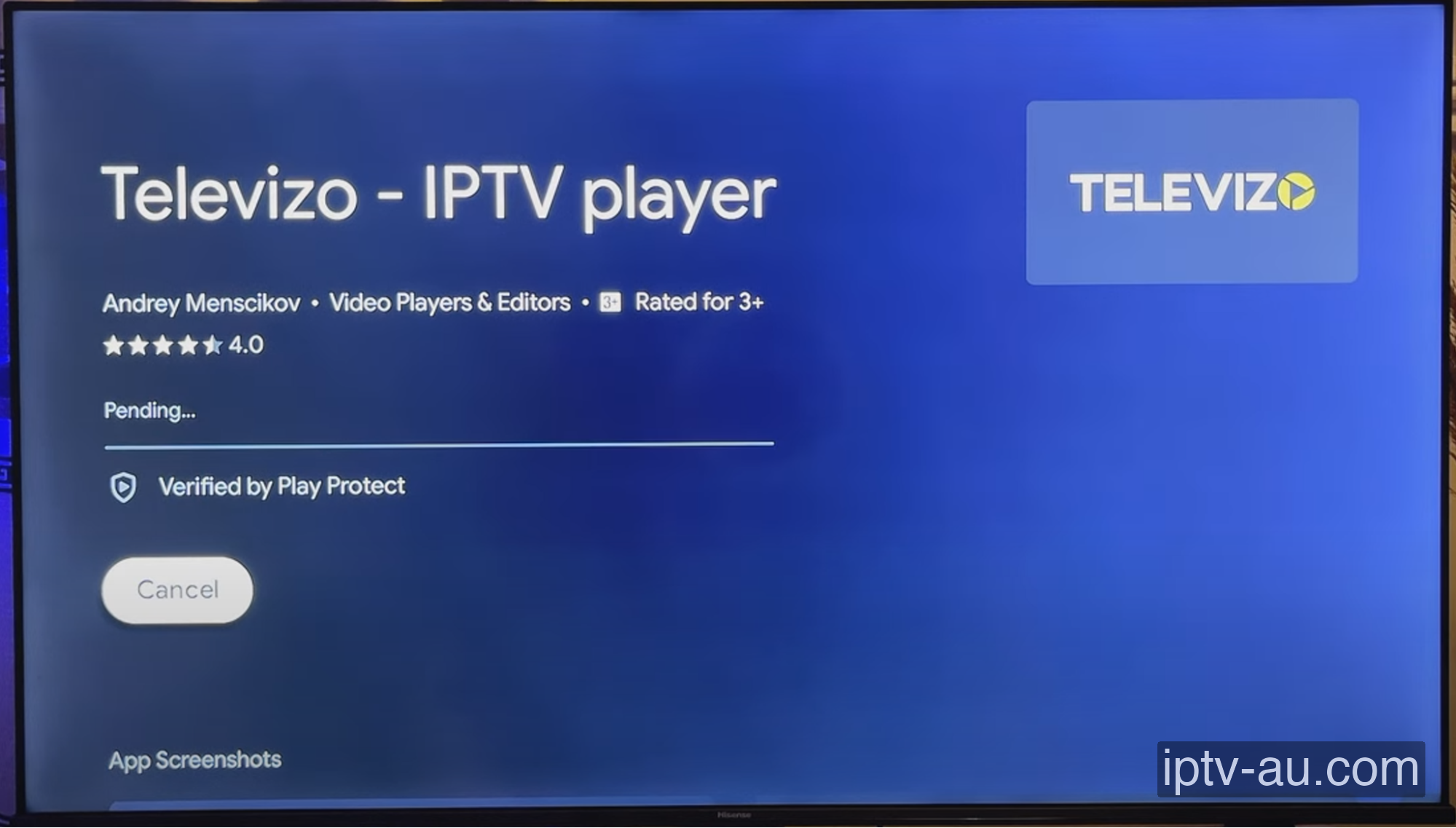
The official Televizo app in the Google Play Store.

How do I set up IPTV on Televizo IPTV? To configure Televizo IPTV for IPTV, install the application on your device. Once installed, launch the app and choose "Login with Xtream Codes API" (or enter your M3U link) to securely input your subscription credentials and load your live TV and VOD library.
| IPTV Subscription | IPTV Televizo |
|---|---|
| Pricing | Freemium |
| App Price | Free (Premium version available) |
| Compatibility | Android, Android TV |
| Setup Time | 4 mins |
| Official Website | Visit Site |
| App Support | [email protected] |
| Google Play | View on Play Store |
Televizo is a fast, clean, and highly customizable IPTV player available natively on the Google Play Store. It offers excellent EPG support, parental controls, and a great interface for both phones and Android TV devices.
Open the Google Play Store on your Android phone, tablet, or Android TV. Search for "Televizo" and install the free app.
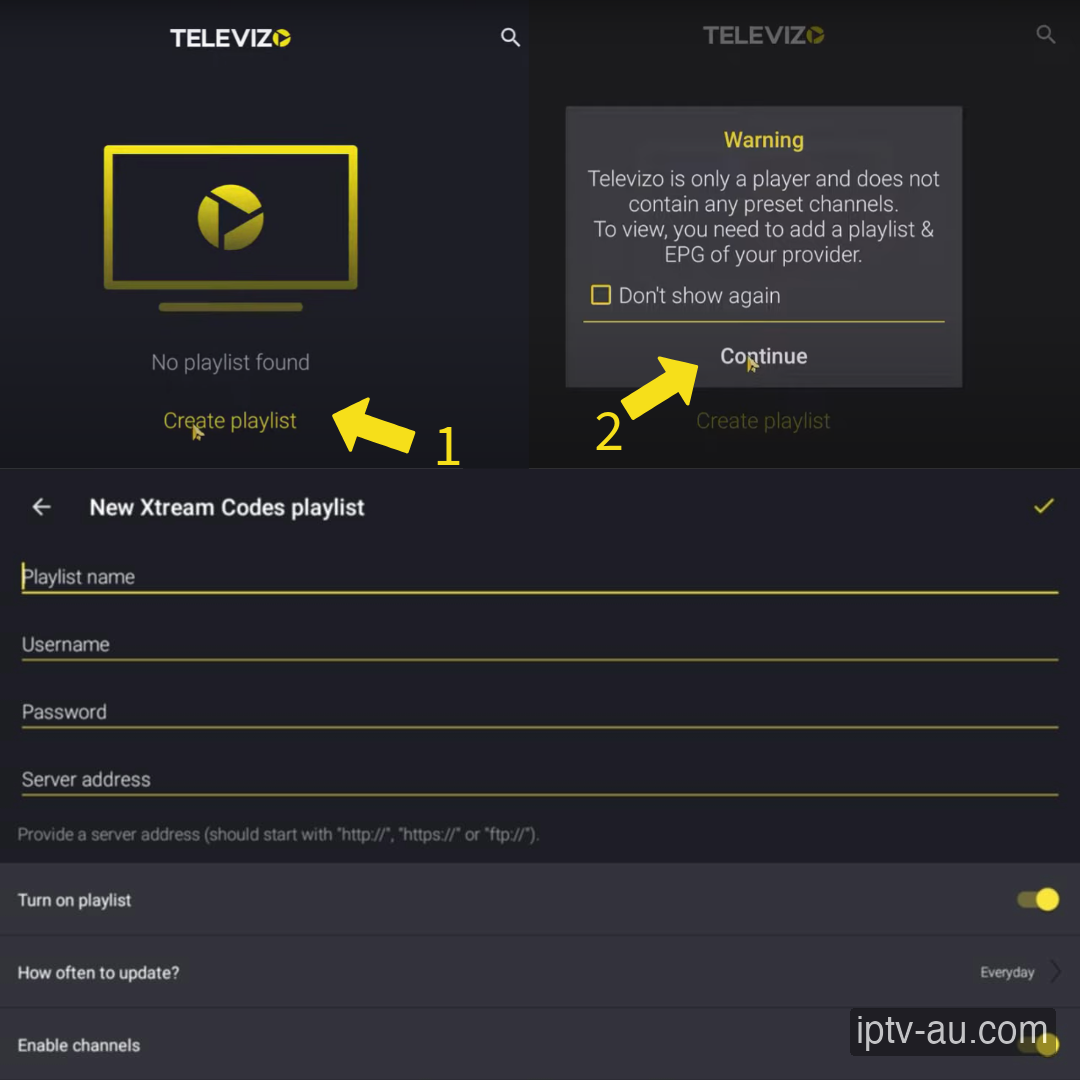
Open Televizo and click the "+" icon or "Create playlist". Select "New Xtream Codes playlist".
Enter a Playlist Name (e.g. IPTV Australia). Then fill out the Server, Username, and Password fields exactly as provided to you in your subscription details.
Televizo will now process the playlist and load your channels. Once finished, you'll be taken to the channel list organized by categories!
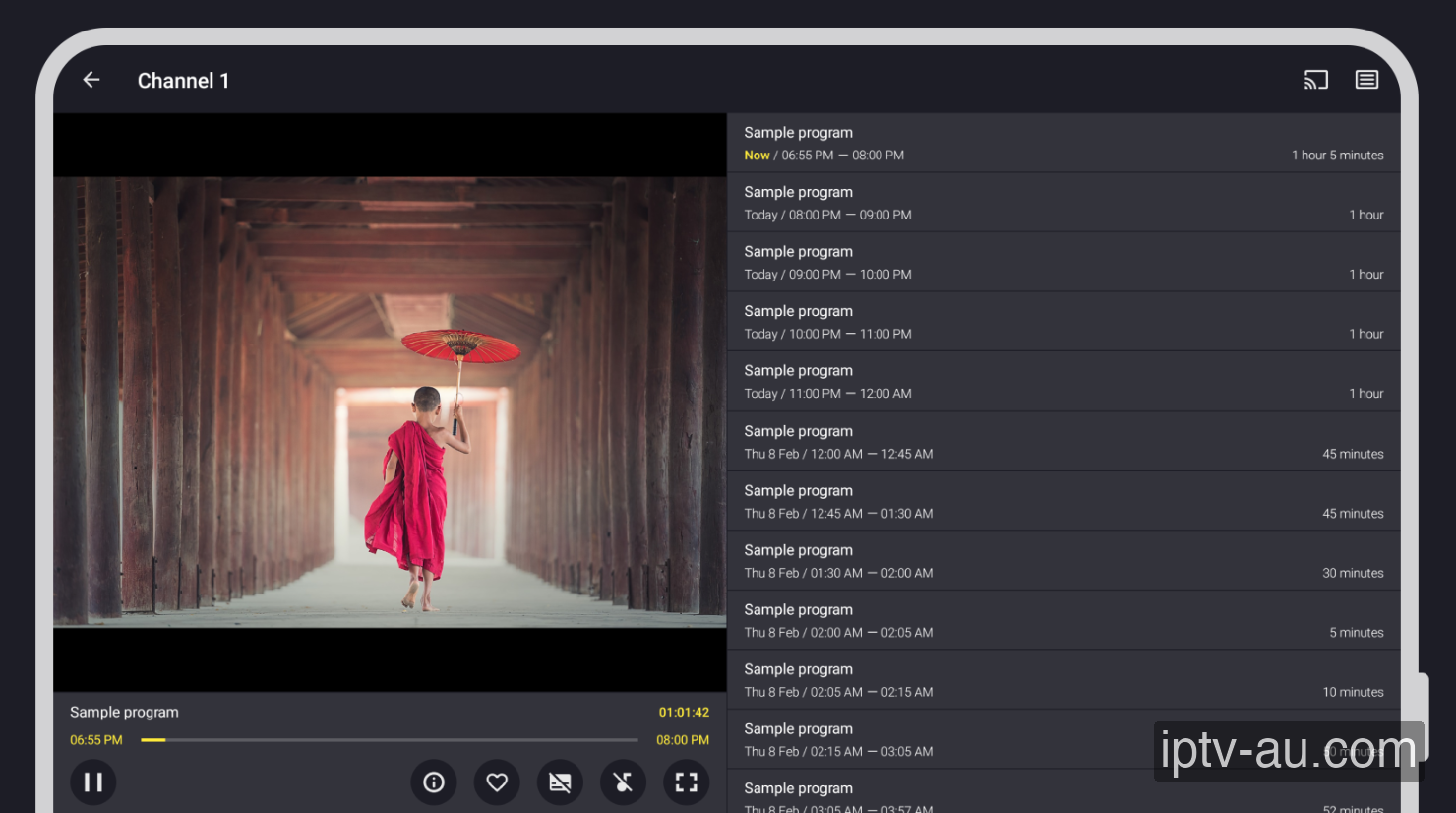
If your TV guide does not load automatically, go to the app's settings > EPG > and click "Update". Televizo will fetch the latest schedule from your Xtream Codes server.
Check your Server URL to ensure
it starts with http:// and doesn't have a trailing slash / at the end. Verify
your username and password for typos.
First, reboot your internet router and your streaming device. If the issue persists, your ISP may be throttling the connection. Consider using a VPN or clearing the app cache.
Force an update of the EPG from the app settings. Some apps require you to manually enter the EPG URL (ending in .xml) if you logged in via an M3U playlist instead of Xtream Codes. Learn more in our Ultimate EPG Troubleshooting Guide.
Double-check your Username, Password, and Server URL. Typos are the #1 cause of login failures. Ensure the URL matches exactly, including the http:// and the port number at the end.
If your live TV works but VOD is missing, you may need to check the "Include VOD" box during setup, or manually trigger a VOD refresh in the app's settings menu.
While some apps are cross-platform, many are specifically designed for Android TV and Firestick. Check the Apple App Store for iOS alternatives like Smarters Player Lite or UHF.
This is usually caused by corrupted cache data. Go to your device's Settings > Apps, find the IPTV app, and select a System Cache Clear. If the issue persists, reinstall the application.
Live TV requires a constant, uninterrupted stream of data, while VOD can buffer ahead. Ensure your device is connected via Ethernet. If you must use Wi-Fi, ensure you are on a 5GHz network close to the router.
This indicates a video codec compatibility issue. Go to the app's Player Settings and toggle the decoder between Hardware (HW) and Software (SW). HW decoding is recommended for most modern devices.
Live TV and VOD often stream from different server ports. If Live TV works but VOD doesn't, your ISP might be blocking the VOD port. Restart your router or enable a premium VPN to bypass the block.
Double-check your credentials. The Xtream Codes API requires exact case-sensitivity. A very common mistake is having an invisible trailing space at the end of your username, password, or server URL.